> ## Documentation Index
> Fetch the complete documentation index at: https://langchain-5e9cc07a-preview-export-1767976498-81c8aa9.mintlify.site/llms.txt
> Use this file to discover all available pages before exploring further.
# Set up resource tags
Before diving into this content, it might be helpful to read the following:
* [Conceptual guide on organizations and workspaces](/langsmith/administration-overview)
Resource tags are available for Plus and Enterprise plans.
While workspaces help separate trust boundaries and access control, tags help you organize resources within a workspace. Tags are key-value pairs that you can attach to resources.
**Not to be confused with commit tags**: Resource tags are key-value pairs used to organize and filter workspace resources (projects, datasets, prompts, etc.). [Commit tags](/langsmith/manage-prompts#commit-tags) are labels that reference specific versions in a prompt's commit history. While both types of tags can use similar terminology (like `prod` or `staging`), resource tags help you *organize resources* across your workspace, while commit tags control *which version* of a prompt is used in your code.
## Create a tag
To create a tag, head to the workspace settings and click on the "Resource Tags" tab. Here, you'll be able to see the existing tag values, grouped by key. Two keys `Application` and `Environment` are created by default; the `Application` key is used to filter resources shown in the UI.
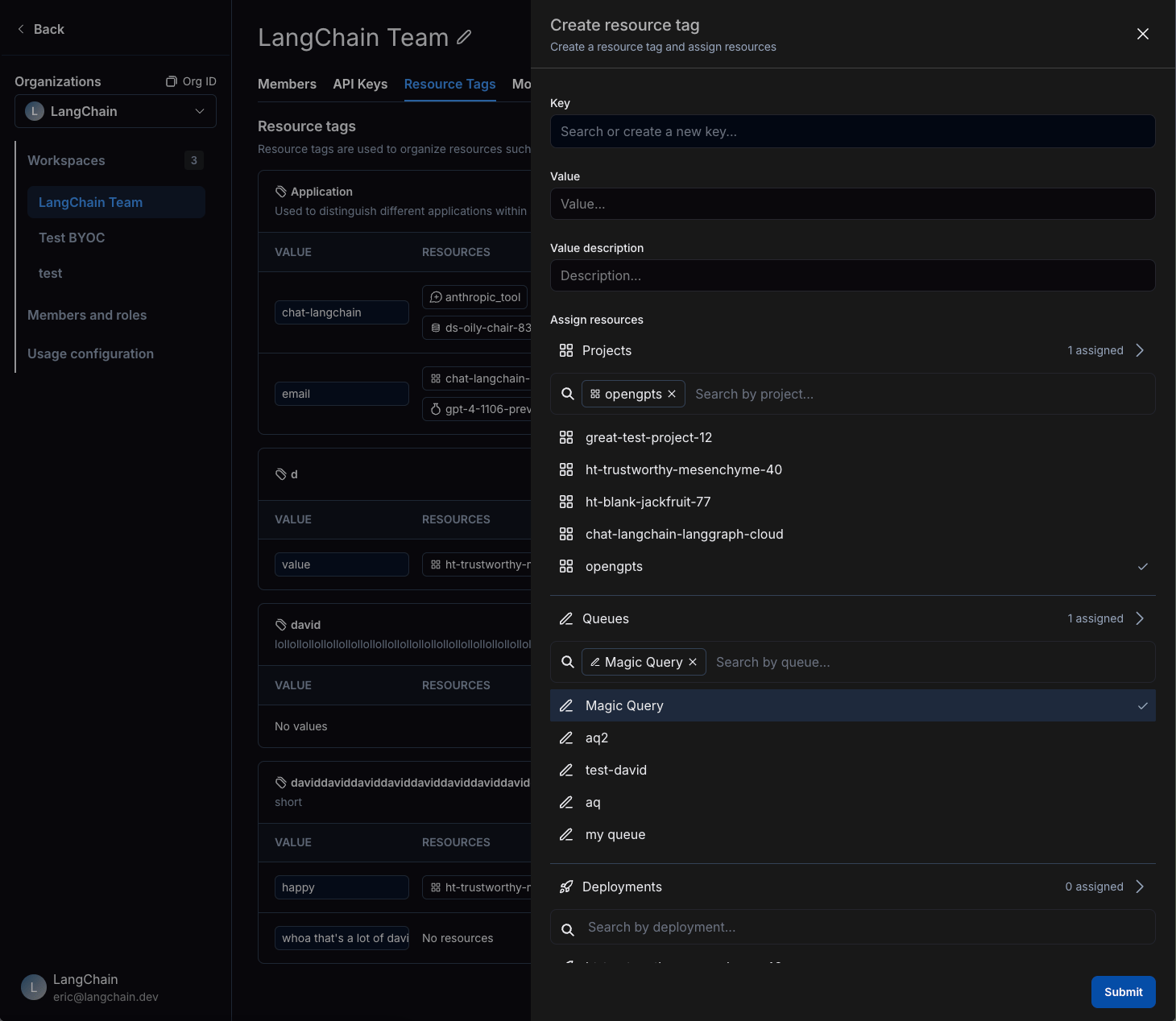
To create a new tag, click on the "New Tag" button. You'll be prompted to enter a key and a value for the tag. Note that you can use an existing key or create a new one.
 ## Assign a tag to a resource
Within the same side panel for creating a new tag, you can also create assign resources to tags. Search for corresponding resources in the "Assign Resources" section and select the resources you want to tag.
You can only tag workspace-scoped resources with resource tags. This includes Tracing Projects, Annotation Queues, Deployments, Experiments, Datasets, and Prompts.
To un-assign a tag from a resource, click on the Trash icon next to the tag, both in the tag panel and the resource tag panel.
## Delete a tag
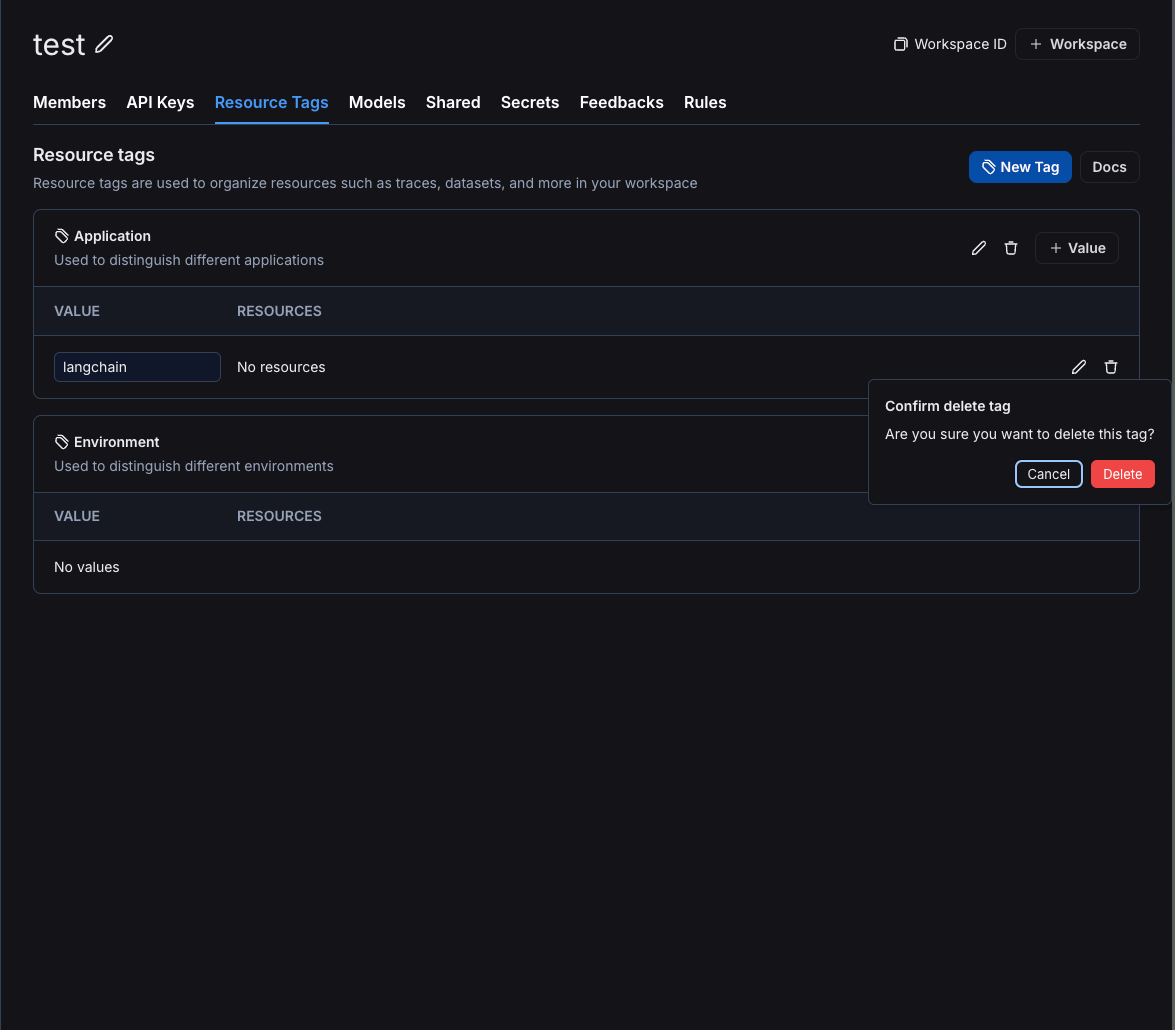
You can delete either a key or a value of a tag from the [workspace settings page](https://smith.langchain.com/settings/workspaces/resource_tags). To delete a key, click on the Trash icon next to the key. To delete a value, click on the Trash icon next to the value.
Note that if you delete a key, all values associated with that key will also be deleted. When you delete a value, you will lose all associations between that value and resources.
## Assign a tag to a resource
Within the same side panel for creating a new tag, you can also create assign resources to tags. Search for corresponding resources in the "Assign Resources" section and select the resources you want to tag.
You can only tag workspace-scoped resources with resource tags. This includes Tracing Projects, Annotation Queues, Deployments, Experiments, Datasets, and Prompts.
To un-assign a tag from a resource, click on the Trash icon next to the tag, both in the tag panel and the resource tag panel.
## Delete a tag
You can delete either a key or a value of a tag from the [workspace settings page](https://smith.langchain.com/settings/workspaces/resource_tags). To delete a key, click on the Trash icon next to the key. To delete a value, click on the Trash icon next to the value.
Note that if you delete a key, all values associated with that key will also be deleted. When you delete a value, you will lose all associations between that value and resources.
 ***
[Edit this page on GitHub](https://github.com/langchain-ai/docs/edit/main/src/langsmith/set-up-resource-tags.mdx) or [file an issue](https://github.com/langchain-ai/docs/issues/new/choose).
[Connect these docs](/use-these-docs) to Claude, VSCode, and more via MCP for real-time answers.
***
[Edit this page on GitHub](https://github.com/langchain-ai/docs/edit/main/src/langsmith/set-up-resource-tags.mdx) or [file an issue](https://github.com/langchain-ai/docs/issues/new/choose).
[Connect these docs](/use-these-docs) to Claude, VSCode, and more via MCP for real-time answers.